Developer options and ADB are required for USB setup.
Credit: Nick Indge
Developer options and ADB are required for USB setup.
Credit: Nick Indge
I had already initialized developer mode on the tablet, but I had to go back and allow ADB over USB in settings. The total installation time from copying the script from the project website to everything running on my PC and tablet was less than a minute. The app is licensed by MIT, runs on Android 5.0 or later, and requires a download as it is not available on the Google Play Store.
The install script also prints its own uninstall script before finishing. Nowadays, getting rid of an unwanted app often seems more difficult than installing it, so I appreciate the simple approach the developer has implemented.
The script can install the APK directly to your device.
Credit: Nick Indge
The script can install the APK directly to your device.
Credit: Nick Indge
What your device becomes
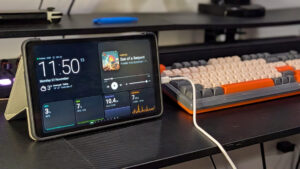
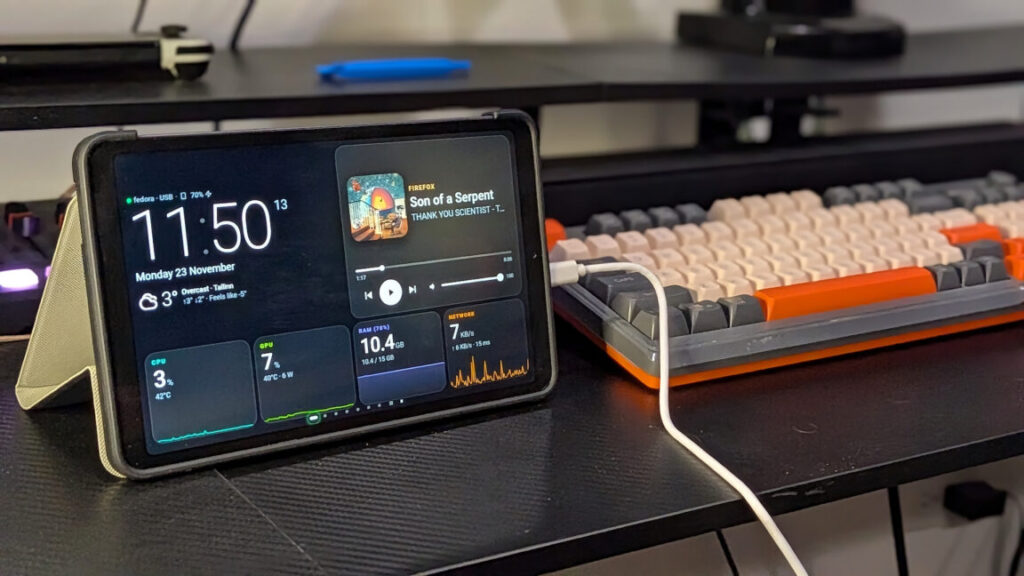
When you first turn on PhoneBox, you get live diagnostic and performance information from your PC, along with several pages of optional content that can be modified for your local configuration to display information relevant to your uses.
Do you want to check your system resources in the game?
Credit: Nick Indge
Do you want to check your system resources in the game?
Credit: Nick Indge
Where PhoneBox really starts to shine is in the widget catalog. A collection of free plugins that can be added as pages to tablet cycling page layouts. There are more general widgets, such as RSS feeds that show featured news from your chosen sources, or simple displays such as timers or world clocks.
There is no shortage of plugins available.
Credit: Nick Indge
There is no shortage of plugins available.
Credit: Nick Indge
I opted for a few different widgets that caught my eye. One allows me to view my library of installed Steam titles and launch them on my PC with a simple tap on the tablet screen. Another allows me to control smart home entities hosted on my Home Assistant server. I was controlling my office lights from my tablet within seconds of adding the widget. It’s brilliant.
Home Assistant connected device controls on PhoneBox
Credit: Nick Indge
Home Assistant connected device controls on PhoneBox
Credit: Nick Indge
Setting up additional widgets is as simple as adding them to the page layout from the PC web interface and hitting save. As soon as I updated things from the PC, the connected tablet immediately started reflecting the changes. I haven’t had a chance to test most of the current 131 options in the widget catalog, but the ones I did make were easy to modify and worked on the first try.